

Extracting a table from a PDF into Excel means converting structured rows and columns locked inside a PDF file into editable spreadsheet data, and Invoscope does this automatically for invoices in about 5 seconds per document at 99.2% accuracy. For general tables in simple PDFs, Excel's own "Get Data" feature is often enough. For invoices, especially multi-page ones with complex line-item tables, native tools fail in predictable ways, and knowing exactly where that line sits will save you significant frustration.
What You Actually Need Before You Start
Two very different problems share the same search query. The first is a straightforward table in a report or form: a grid of numbers, maybe one page, consistent column widths. The second is an invoice line-item table: variable columns, merged cells, spanning descriptions, amounts that wrap across rows, and possibly 10 or 20 pages of them.
Excel handles the first case reasonably well. It struggles badly with the second. Understanding which situation you are in before you spend an hour fighting a tool is the practical starting point.
How to Use Excel's Get Data from PDF Feature
Microsoft added native PDF import to Excel in 2021 as part of the Power Query connector set. It is available in Excel 365, Excel 2021, and Excel 2019 on Windows. Mac users need a workaround (covered below).
Step-by-Step: Windows Excel
- Open a blank workbook in Excel.
- Click the Data tab in the ribbon.
- Select Get Data, then From File, then From PDF.
- Browse to your PDF and click Import.
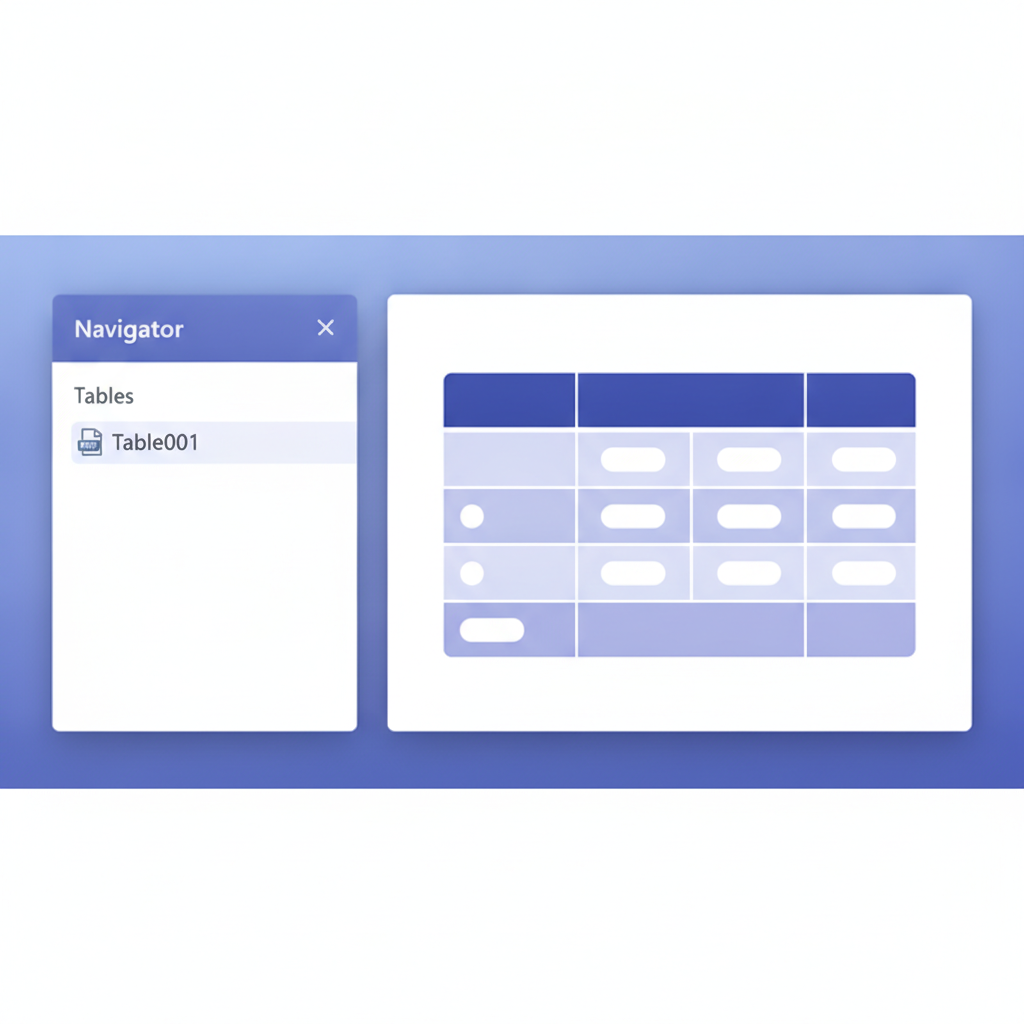
- The Navigator pane opens. Excel lists every table it detected, labelled Table001, Table002, and so on. It also lists individual pages.
- Click a table name to preview it on the right. When you find the one you want, click Load to drop it into a new sheet, or Transform Data to clean it first in Power Query.
The whole process takes about two minutes for a clean, single-page table. The result lands in Excel as a formatted table you can sort, filter, and use in formulas straight away.
Step-by-Step: Mac or Older Excel
Mac Excel does not include the PDF connector as of 2026. Your options are:
- Copy the table text manually from Adobe Acrobat Reader (Edit, Copy, Paste Special into Excel), then fix column alignment by hand.
- Use a browser-based PDF-to-Excel converter for one-off jobs. Most free tools add a watermark or cap file size.
- For invoices specifically, skip both and use a dedicated extraction tool (explained below).
Where It Works Well: Simple, Single-Page Tables
Excel's importer performs reliably when the PDF table meets a few conditions. Checking these before you start will predict your success rate pretty well.
| Condition | Excel Get Data result |
|---|---|
| One page, fixed-width columns, no merged cells | Usually clean, minimal manual cleanup |
| Text-based PDF (not scanned) | Good. Power Query reads the text layer directly |
| Multiple tables on one page, clearly separated | Acceptable. Each gets its own Navigator entry |
| Scanned PDF (image-only, no text layer) | Fails entirely. Excel sees no table at all |
| Table spanning multiple pages | Often splits into separate fragments, rows misaligned |
| Merged header cells or grouped rows | Columns collapse or shift; data lands in wrong cells |
| Invoice line items with wrapped description text | Row boundaries break; quantity and price detach from description |
Why Invoice Tables Break Everything
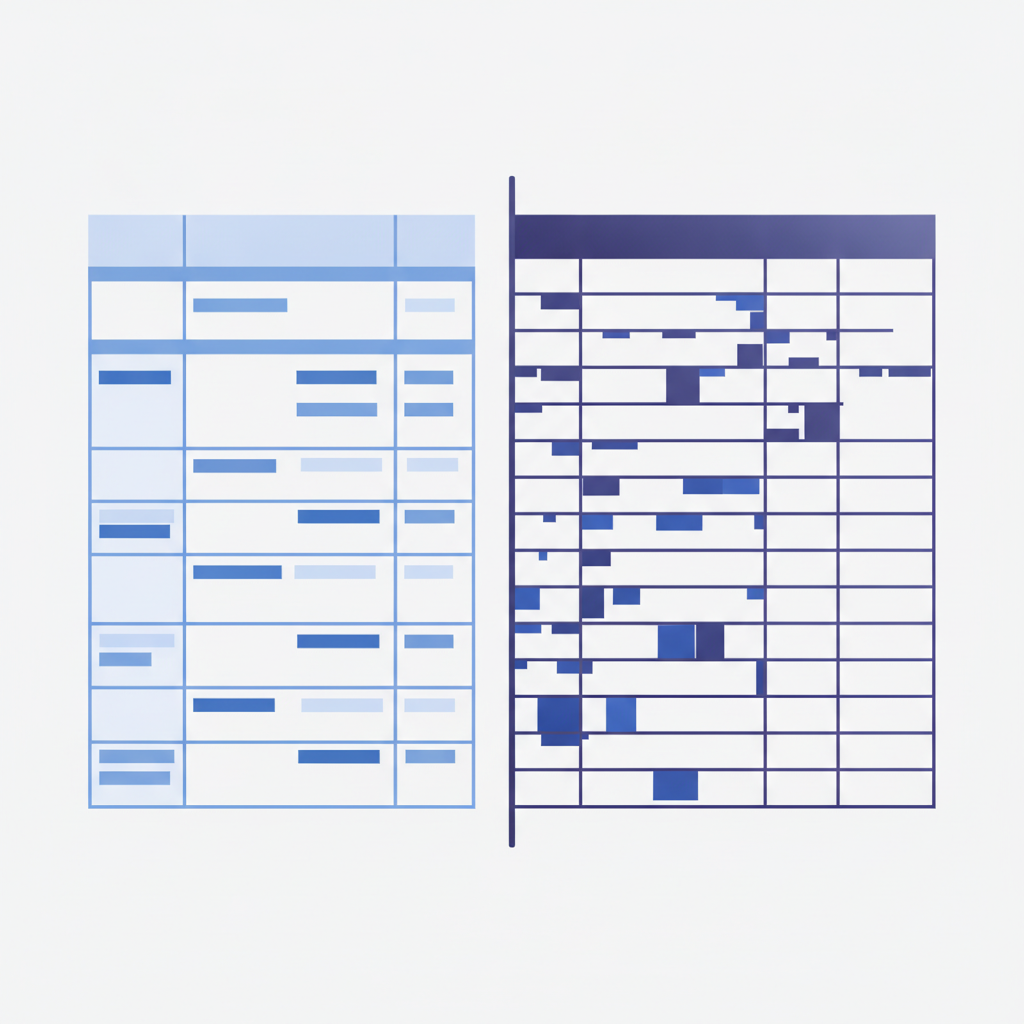
Invoices are designed for printing, not for data extraction. Vendors use every layout trick available: centered headers, merged subtotal rows, bold totals that straddle columns, line descriptions that wrap onto a second line within the same logical row. PDF renderers encode these as coordinates on a page, not as a structured table with rows and cells.
When Excel's Power Query reads this, it tries to reconstruct a grid from position coordinates. A description cell that wraps to 1.5 lines of vertical space becomes two separate rows in Excel, with the quantity field floating alone in the next row. A subtotal row that spans all columns might appear as a single-cell row at position column 1, leaving five empty columns. On a 3-page invoice with 40 line items, you can end up with 90 rows of scrambled data that takes longer to fix manually than re-typing would have.
Scanned invoices are even worse. If your supplier sends a photographed invoice or a PDF created from a scan, there is no text layer at all. Excel's Get Data returns nothing. You are looking at an image, and no spreadsheet tool can parse an image natively.
For a deeper look at why line-item tables are the hardest part of invoice OCR, the article on invoice line-item extraction covers the technical reasons in full.
The Specific Failure Modes, Shown Concretely
These are the four patterns that appear most often when you try to copy an invoice table into Excel using native tools.
1. Row Splitting on Wrapped Descriptions
A line item reads: "Professional Services, December 2025, Project Orion Phase 2" across two PDF lines. Excel sees two rows. The quantity (1) and unit price ($4,500.00) land on the first row. The second half of the description sits alone on the next row with no associated numbers. You now have 80 rows instead of 40, and the arithmetic is broken.
2. Column Drift on Variable-Width PDFs
Some invoice templates shift column positions depending on whether an amount has 4 or 7 digits. Excel's coordinate-based reconstruction picks up the shift and misaligns every row from that point downward. Amounts jump one column to the left. Tax codes appear under quantity headers.
3. Subtotal Rows Collapsing All Columns
A subtotal row spanning the full width of the invoice arrives in Excel as a single cell in column A, with columns B through F empty. If you run a SUM on column F to total your amounts, the subtotals are missing from the calculation entirely.
4. Complete Failure on Scanned PDFs
Excel imports the file, the Navigator opens, and there are no tables listed. You can load the page as an image object, but it is useless for calculation. You have to either retype the data or use an OCR tool.
When to Stop Fighting the PDF and Use a Dedicated Tool
The honest answer is: any time the PDF is an invoice, a dedicated extraction tool almost always produces better results faster. The general rule of thumb in finance teams is that Excel's importer is fine for static reports, financial statements, or data exports from another system. Invoices sit in a different category.
This is where Invoscope fits. Upload a PDF invoice, and the AI reads the full document, including scanned images, multi-page layouts, and merged cells, then returns clean structured data with every line item correctly associated with its quantity, unit price, tax rate, and total. Processing takes about 5 seconds per invoice. The extracted data exports directly to Excel or CSV with one click. There is no template to configure, no rules to write, and no column mapping to fix afterward.
For a full comparison of all five PDF-to-Excel methods including copy-paste, Tabula, Adobe Acrobat, Power Query, and AI extraction, see the invoice PDF to Excel methods guide. For the broader picture of extraction approaches across all invoice formats, the pillar on invoice data extraction methods is the right starting point.
Invoscope's Two Modes for Different Volumes
Invoscope offers two workflows depending on how many invoices you are handling.
| Mode | Best for | How it works |
|---|---|---|
| Quick Analyze | One-off invoices, spot checks, single documents | Upload a PDF, get structured data in about 5 seconds, export to Excel or CSV |
| Smart Projects | Recurring batches, monthly supplier invoice runs, bulk processing | Upload multiple PDFs at once, all processed in parallel, results consolidated into a single export |
The free tier covers 10 invoices per month with no credit card required. Paid plans start at $9.99 per month. There is no per-page pricing and no credit system to manage.
Quick Decision Guide: Native Excel vs. Invoscope
| Your situation | Recommended approach |
|---|---|
| Simple one-page table, not an invoice, text-based PDF | Excel Get Data from PDF is fine |
| Invoice with fewer than 5 line items, single page, text-based | Excel Get Data might work, verify carefully |
| Invoice with many line items, any length | Use Invoscope Quick Analyze |
| Scanned or photographed invoice | Use Invoscope (Excel cannot read scanned PDFs) |
| 10 or more invoices per month to process | Use Invoscope Smart Projects for batch processing |
| Invoice data needs to flow into accounting software automatically | Invoscope with CSV export or API, connected via Zapier or n8n |
Frequently Asked Questions
Can Excel's Get Data feature read scanned PDF invoices?
No. Excel's PDF connector reads the text layer of a PDF. Scanned invoices are images embedded in a PDF container with no text layer, so Excel's Navigator returns no tables. You need an OCR-based tool to extract data from scanned invoices.
Why do my invoice line items land in the wrong columns after importing to Excel?
Excel reconstructs table structure from the x/y coordinates of text objects on the page. Invoices often use variable-width columns or description text that wraps across multiple lines. When the coordinates do not form a clean grid, Excel's Power Query misassigns rows and columns. A dedicated invoice AI tool reads the semantic meaning of fields rather than their positions, which is why it handles these layouts correctly.
Is there a free way to extract table data from a PDF invoice?
Yes. Invoscope's free tier processes 10 invoices per month at no cost with no credit card required. For truly simple, single-page, text-based PDF tables that are not invoices, Excel's built-in Get Data from PDF feature is also free and works without any additional software.
How accurate is AI extraction compared to doing it manually in Excel?
Invoscope runs at 99.2% field-level accuracy across a benchmark of 5,000 invoices. Manual copy-paste from Excel is technically 100% if you make no mistakes, but research on data entry error rates typically puts human accuracy at around 96 to 99% per field, and it takes far longer. The practical accuracy advantage of AI extraction is the consistency: it does not make transcription errors when processing invoice 47 of a batch at 5 PM.
Does Invoscope work with invoices in languages other than English?
Yes. Because Invoscope is powered by Google Gemini, it handles invoices in most major languages including German, French, Spanish, Portuguese, Dutch, and others. Field labels in foreign languages are recognized and mapped to standard output fields like invoice number, vendor name, line item description, unit price, and total.
Ready to Stop Fighting Invoice PDFs?
If Excel's importer keeps breaking your invoice line items, try Invoscope for free. Upload your first 10 invoices per month at no cost, no credit card needed, and get clean Excel-ready data in about 5 seconds per invoice.
Create your free Invoscope account and extract your first invoice now.
Related reading: Multi-Currency Invoices: How to Extract and Standardize Data Across Currencies