

A finance team invoice workflow tool is software that captures, extracts, and structures the data from incoming invoices so your team spends time reviewing numbers rather than retyping them. Invoscope does exactly that: it converts PDF invoices to clean, structured Excel data in about 5 seconds per document, at 99.2% extraction accuracy, with no template setup and no per-invoice manual effort.
This guide is written for finance managers who already know manual processing is the bottleneck. It skips the theory and goes straight to workflow design.

Why Finance Teams Hit a Wall With Manual Invoice Processing
Most finance teams start with a reasonable system: someone downloads PDF invoices from email, types the fields into a spreadsheet, and passes the file along for approval. That works fine at 30 invoices a month. At 300, it breaks.
The problems stack up predictably. A single transposed vendor number can cause a payment to post to the wrong account. Chasing down a miskeyed total wastes more time than the original entry took. And the person doing the entry is usually an analyst or coordinator who could be doing something that actually requires their judgment.
Industry benchmarks put the cost of manually processing a single invoice somewhere between $10 and $15 when you account for labor, error correction, and the time managers spend on approvals that get delayed by data problems. If you want a fuller breakdown of where that cost comes from, the real cost of manual invoice processing analysis covers it in detail.
The alternative is not a full AP automation suite. For most finance teams, the practical gap to fill is much narrower: you need the data out of the PDF and into a usable format, fast, without setting up a dozen field templates or signing an annual contract.
How Invoscope Fits Into a Finance Team's Existing Workflow
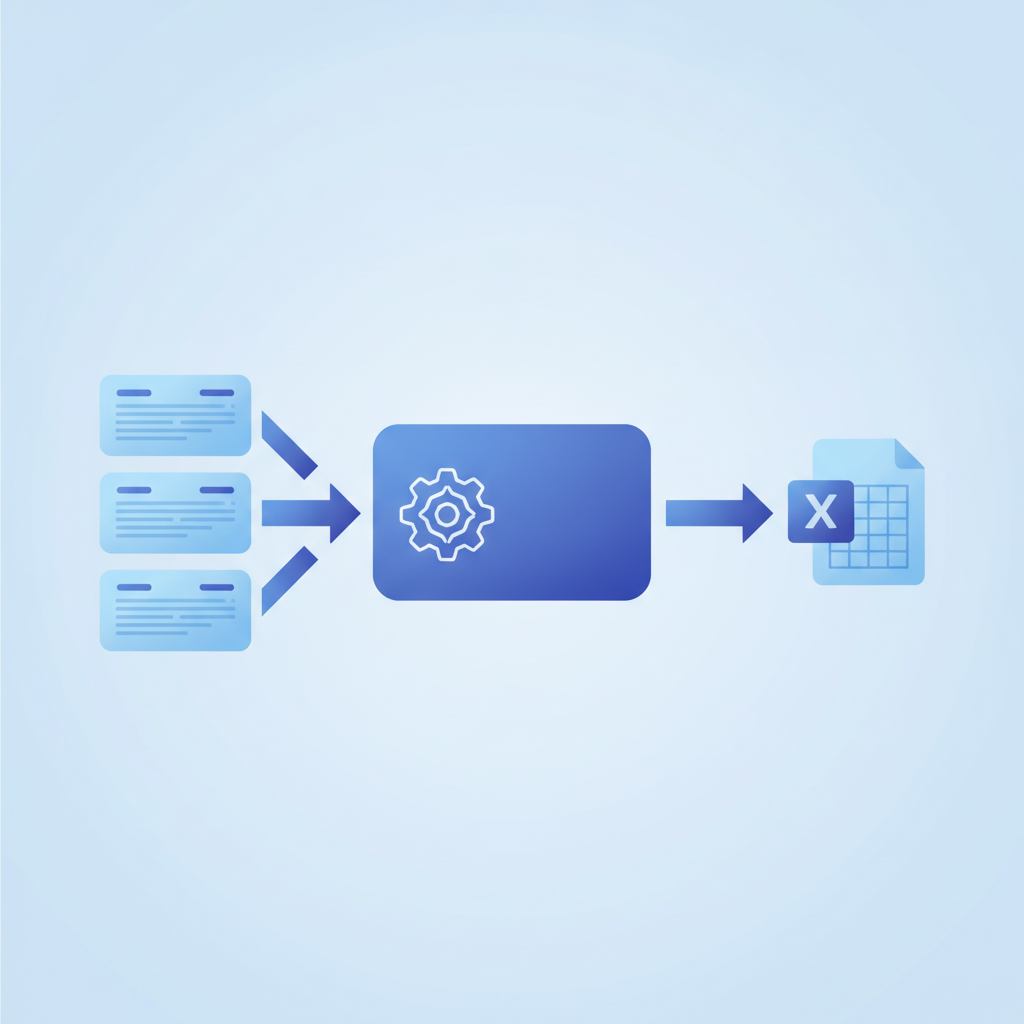
Invoscope is not accounting software. It does not handle approvals, code line items to a chart of accounts, or sync with your ERP out of the box. What it does is extract structured data from any invoice PDF and hand it back to you as a clean Excel or CSV file in seconds. From there, your team decides where that data goes.
That single-purpose focus is actually the point. Because Invoscope only does extraction, it fits into your existing workflow without displacing anything. Your accounting system stays the same. Your approval process stays the same. You just stop typing.
There are two modes, each suited to a different workflow pattern:
- Quick Analyze is designed for one-off or low-volume extraction. Drop in a PDF, get structured data back in seconds. Ideal for ad hoc requests or when someone on the team needs to pull a single vendor invoice fast.
- Smart Projects is designed for recurring, high-volume workflows. You upload a batch of invoices, Invoscope processes them together, and you download one consolidated Excel file. This is the mode most finance teams end up using for month-end close and regular AP runs.
You can read more about the extraction features in detail on the features page.
Building a Practical Invoice Workflow Around Invoscope
Step 1: Gather Invoices Into a Single Collection Point
Before any automation can help, invoices need to be in one place. For most finance teams this means a shared inbox or a folder in cloud storage. If your vendors email invoices directly, a rule that auto-forwards attachments to a dedicated address takes about five minutes to set up and removes the first source of delay.
Paper invoices are a separate problem. If you are still receiving physical invoices, the guide to digitizing paper invoices covers scanning options that produce PDF quality good enough for AI extraction.
Step 2: Choose the Right Extraction Mode for Each Workflow
Not every invoice run looks the same. Here is a simple way to decide which Invoscope mode to use:
| Scenario | Volume | Best Mode | Output |
|---|---|---|---|
| One vendor invoice, quick check | 1 to 5 | Quick Analyze | Single structured file |
| Weekly AP run | 10 to 50 | Smart Projects | Consolidated Excel batch |
| Month-end close batch | 50 to 500+ | Smart Projects | Consolidated Excel batch |
| Audit or retrospective pull | Variable | Smart Projects | Consolidated Excel batch |
Smart Projects keeps all extracted invoices in a named project so your team can find, review, and re-export at any point. That audit trail matters when someone asks why a payment amount changed between drafts.
Step 3: Review and Validate the Extracted Data
At 99.2% extraction accuracy, most invoices come out clean. But a 0.8% error rate across 500 invoices is still four records worth checking. Build a lightweight review step into your workflow, not a line-by-line re-keying exercise. Spot-check totals and vendor names against the original PDF. On a well-structured invoice, this takes under a minute per document.
The key difference from manual entry is where your team's attention goes. Instead of producing the data, they are auditing it. That shift alone cuts per-invoice time significantly.
Step 4: Export and Feed Your Accounting System
Invoscope exports to Excel and CSV. From there, most accounting platforms accept a structured import. If you are using QuickBooks, Xero, or another tool, the invoice extraction and accounting software integration guide walks through the common import patterns.
For teams that want to automate the handoff further, Invoscope's API makes it possible to wire extraction into a Zapier or Make workflow so extracted data lands directly in your accounting tool without a manual export step.
Step 5: Standardize and Document the Process
This step gets skipped more than any other. Write down the workflow. Which inbox do invoices come from? Who runs the extraction? How often? Who reviews? Where does the final file go? A one-page process note means anyone on the team can cover the AP run during leave without things falling apart.
How Finance Teams at Different Scales Use Invoscope
Small Finance Team (1 to 3 People)
A two-person finance function at an agency or small business typically handles 50 to 150 invoices a month. At that volume, Invoscope's paid plans starting at $9.99 per month represent a straightforward trade: a few dollars a month to eliminate several hours of data entry. The free tier covers 10 invoices a month with no credit card required, which is enough to test the actual workflow before spending anything.
Mid-Size Finance Team (4 to 15 People)
A finance team at a growing company often has one person who owns AP and several others who occasionally need invoice data for budget reconciliation or project costing. Smart Projects works well here because the project owner runs extractions and teammates access the consolidated output. No one needs to re-extract the same invoice twice.
Finance Team Supporting Multiple Business Units
When a single finance team handles invoices for several internal clients or subsidiaries, organization becomes as important as speed. Creating one Smart Project per business unit or cost center keeps data clean and makes month-end reporting straightforward. Each project produces its own Excel export, which maps cleanly to separate P&L lines.
Common Finance Team Workflow Mistakes (and How to Avoid Them)
Letting Invoices Accumulate Before Extracting
The temptation is to wait until the end of the month and process everything at once. The problem is that a batch of 200 invoices is harder to validate than a weekly batch of 50. A weekly extraction run takes 10 to 15 minutes and keeps the review step manageable.
Using One Mode for Everything
Some teams default to Quick Analyze for every invoice because it is the first thing they tried. If you are processing more than a handful of invoices at a time, Smart Projects will save you time. The batch output means one file to review and import instead of many.
Skipping the Validation Step
Trusting extracted data completely without a spot-check is optimistic. A validation step does not need to be exhaustive. Check the vendor name, invoice number, total, and date on a random 10% of invoices. If those fields are clean, the rest almost certainly are too.
Not Connecting Extraction to the Broader Process
Invoscope handles extraction. It does not handle what happens after. If you have not mapped out where the Excel file goes once it is exported, you will still have a bottleneck, just downstream. Define the full workflow from invoice receipt to payment posting before optimizing any single step.
How Invoscope Compares to the Alternatives for Finance Teams
| Tool Type | Setup Required | Price Entry Point | Best For | Finance Team Fit |
|---|---|---|---|---|
| Invoscope | None (no templates) | Free / $9.99/month | PDF to Excel extraction, any invoice format | Strong: fast setup, transparent pricing |
| Enterprise AP platform | High (months of config) | $500+/month typical | Full AP automation, ERP integration | Overkill for most SMB finance teams |
| Legacy OCR tool | Medium (template per vendor) | $50 to $200/month | Structured, consistent invoice formats | Fragile when vendor formats change |
| Manual data entry | None | Labor cost only | Very low volumes | Breaks above 30 to 50 invoices/month |
| General-purpose OCR (e.g. Adobe) | Low | Part of existing subscription | Text extraction, not structured data | Still requires manual cleanup of output |
For a more detailed look at how specific tools compare, the invoice processing software buyer's guide covers evaluation criteria that apply directly to finance team use cases.
Getting Started Without Disrupting Your Current Process
Run an accounting practice rather than an in-house finance team? See our dedicated accountant and bookkeeper use-case guide.
The easiest way to test whether Invoscope fits your workflow is to run a parallel test. For one week, process your invoices the usual way and also run them through Invoscope. Compare the time spent and the output quality. The free tier gives you 10 invoices per month with no credit card needed, which is enough for a real test without any financial commitment.
If the output is clean and the time saving is real, you have your answer. If something does not fit, you have lost nothing. That is the point of a genuine free tier rather than a trial countdown.
For the broader case on automating your invoice process, the complete guide to how to automate invoice processing covers tool selection, accuracy standards, and workflow design in one place.
Ready to run your first extraction? Create a free Invoscope account and process up to 10 invoices this month at no cost, no credit card required.
Related reading: Invoice Reconciliation Software: How to Match Invoices to POs Automatically
Related reading: How to Automate Invoice Processing With Zapier: Step-by-Step Workflow