

Exporting invoice data to Google Sheets automatically means connecting an AI extraction tool like Invoscope to your spreadsheet so that every field pulled from a PDF invoice lands in the right column without manual typing. Invoscope extracts structured data from any invoice in about 5 seconds at 99.2% accuracy, then gives you several routes to push that data straight into Google Sheets.
Why Google Sheets Is a Reasonable Home for Invoice Data
Not every finance team is ready to commit to QuickBooks or Xero. Google Sheets is free, already familiar, shareable in seconds, and flexible enough to build lightweight AP tracking, spend dashboards, or supplier summaries. The gap has always been getting the data out of PDFs and into the sheet without spending an hour per invoice.
That gap is exactly what invoice data extraction closes. Once Invoscope reads a PDF and structures the fields (vendor name, invoice number, date, line items, totals, tax), you have a few clean paths to get those rows into Sheets automatically. The three most practical ones are a direct CSV download, a Zapier automation, or a Make (formerly Integromat) scenario.
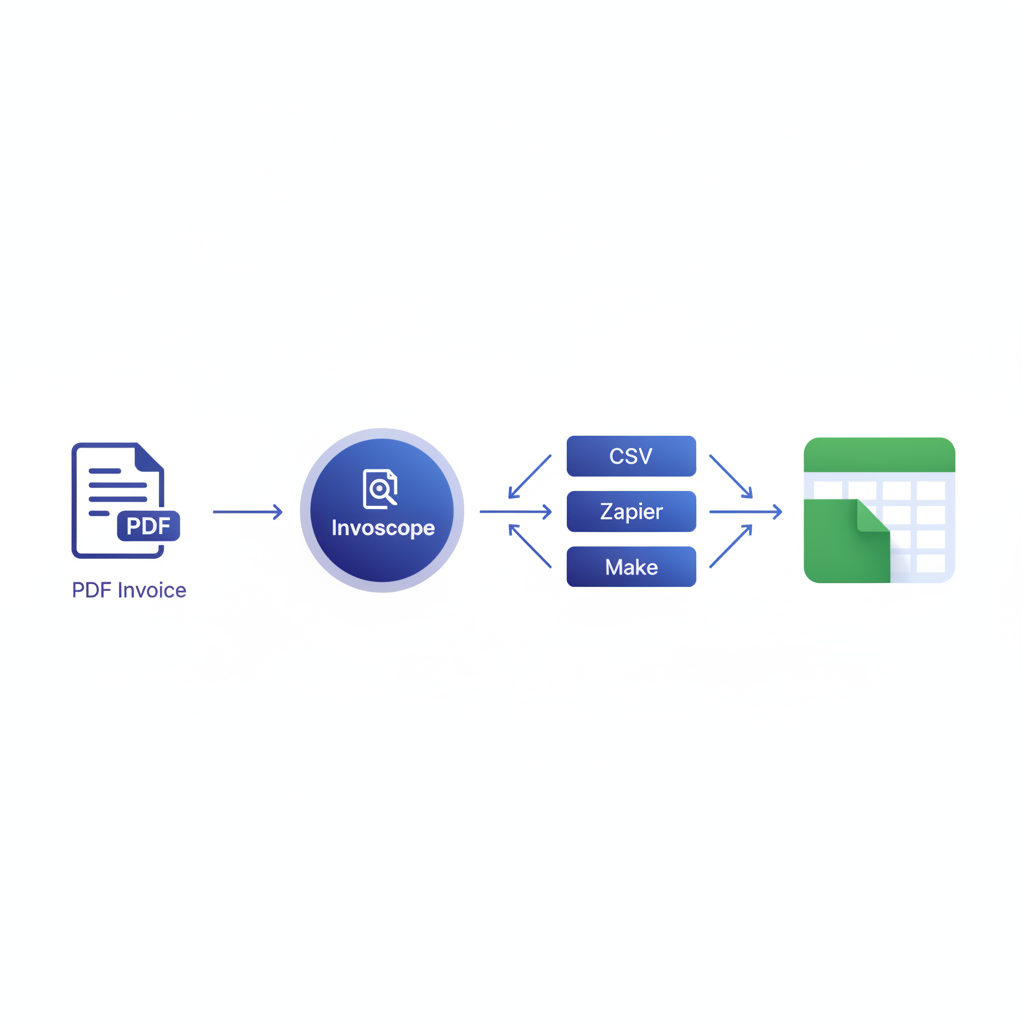
Method 1: Direct CSV Export (Fastest, No Account Needed)
This is the simplest path. After Invoscope extracts an invoice, the dashboard offers a CSV download alongside the Excel and JSON options. You open that CSV in Google Sheets or import it directly.
Step-by-step
- Upload your PDF invoice to Invoscope using Quick Analyze (single invoice) or Smart Projects (batch). Quick Analyze is designed for one-off extractions; Smart Projects handles recurring batches from a single supplier or project folder. Learn more on the features page.
- Wait roughly 5 seconds for extraction to complete.
- Click "Download CSV" from the results panel.
- Open Google Sheets, go to File, then Import, and upload the CSV file. Choose "Append to current sheet" if you are building a running log.
For teams processing 10 or fewer invoices per month, Invoscope's free tier covers this entirely, with no credit card required. If your volume is higher, paid plans start at $9.99 per month.
The CSV method works well for occasional use. If you are processing invoices daily or want rows to appear in Sheets the moment extraction finishes, the automation methods below remove even that manual step.
Method 2: Zapier (Recommended for Most Teams)
Zapier connects Invoscope to Google Sheets through a trigger-and-action workflow. When a new extraction completes, Zapier catches the event via the Invoscope webhook or API trigger and appends a row to your Google Sheet.
If you have already set up Zapier for invoice processing generally, the Zapier step-by-step guide covers the full setup. The section below focuses on Google Sheets as the specific destination.
Setting up the Google Sheets Zap
- Trigger: Invoscope new extraction event. In Zapier, create a new Zap and search for Invoscope (or use "Webhooks by Zapier" with the endpoint from your Invoscope API settings). Select the trigger "New Extraction Completed."
- Test the trigger. Run a real extraction in Invoscope so Zapier has sample data to map from. You should see fields like
vendor_name,invoice_number,invoice_date,total_amount,tax_amount, andline_itemsin the payload. - Action: Google Sheets, Append Row. Connect your Google account, select the target spreadsheet and sheet tab, then map each Invoscope field to the corresponding column header in your sheet.
- Turn on the Zap. From this point forward, every extraction triggers an automatic row append. No manual steps at all.
Suggested Google Sheets column headers
| Column | Invoscope Field | Notes |
|---|---|---|
| Vendor Name | vendor_name | Pulled from invoice header |
| Invoice Number | invoice_number | Use for deduplication |
| Invoice Date | invoice_date | Format as YYYY-MM-DD for sorting |
| Due Date | due_date | Useful for cash flow tracking |
| Subtotal | subtotal | Before tax |
| Tax Amount | tax_amount | Extracted even from complex formats |
| Total Amount | total_amount | Primary figure for AP tracking |
| Currency | currency | Important for multi-currency teams |
| Extraction Date | created_at | Timestamp from Invoscope |
Line items in Sheets
Line item data is a bit trickier. Each invoice can have a variable number of rows. The cleanest approach is to use a second sheet tab dedicated to line items, with an Invoice Number column to join it back to the header sheet. Zapier supports multi-step Zaps where you loop over the line items array and append each one as a separate row. This keeps your header sheet clean and your line item sheet queryable.
Method 3: Make (Formerly Integromat)
Make offers more visual control over data transformation before it lands in Sheets, which is useful if you need to reformat dates, convert currencies, or filter by vendor before appending rows.
Setting up a Make scenario
- Module 1: Invoscope webhook or HTTP request. Set up a Watch trigger using a custom webhook. Copy the webhook URL into your Invoscope notification settings so Make receives a payload after each extraction.
- Module 2 (optional): Data transformation. Use Make's built-in functions to format the date field, round currency values, or add a static "Status" column defaulting to "Unpaid."
- Module 3: Google Sheets, Add a Row. Map the transformed fields to your sheet columns. Make lets you reference nested objects in the payload, so pulling a specific line item field is straightforward.
- Activate the scenario. Set it to run instantly (triggered by webhook) rather than on a schedule so rows appear within seconds of extraction completing.
Make's free tier allows 1,000 operations per month, which covers around 100 to 200 invoice extractions depending on how many modules run per scenario. For higher volumes, Make's paid plans are comparable to Zapier's in cost.

Comparing the Three Methods
| Method | Setup Time | Automation Level | Best For | Extra Cost |
|---|---|---|---|---|
| Direct CSV Export | Under 2 minutes | Manual import step required | Occasional use, free tier users | None |
| Zapier | 15 to 30 minutes | Fully automatic on extraction | Teams processing 10 to 200 invoices per month | Zapier free or paid plan |
| Make | 20 to 45 minutes | Fully automatic with transformation | Teams needing data formatting or filtering before Sheets | Make free or paid plan |
What Invoscope Extracts (And What Lands in Your Sheet)
Invoscope is not accounting software and does not try to replace it. It is a single-purpose extraction tool: you give it a PDF invoice, it gives you clean structured data. The extraction covers header fields (vendor, buyer, dates, PO number, payment terms), summary financials (subtotal, tax, total, currency), and full line item tables including descriptions, quantities, unit prices, and line totals.
That structured output is what flows into Google Sheets. You are not getting a scanned image or a garbled text dump. You are getting rows and columns that are ready to filter, pivot, or feed into a spend report. For more on how that extraction actually works under the hood, see the guide on automating invoice processing with Zapier and the broader complete invoice automation guide.
Tips for Keeping Your Google Sheet Clean Over Time
- Use a header row freeze. Lock row 1 so column headers stay visible as the data grows.
- Add a deduplication check. Use a COUNTIF formula in a helper column to flag duplicate invoice numbers before they create problems downstream.
- Separate tabs by year or supplier. If you process invoices from multiple vendors, Smart Projects in Invoscope lets you organize extractions by project, which maps cleanly to separate Sheets tabs.
- Build a pivot table for spend by vendor. Once data flows automatically, a pivot table on the Vendor Name and Total Amount columns gives you a live spend summary with no extra work.
- Set conditional formatting for overdue invoices. If Due Date is populated and earlier than today, highlight the row red. This turns your Sheets log into a lightweight AP tracker.
When Google Sheets Is Enough (And When It Is Not)
Google Sheets handles most SMB invoice tracking needs well up to a few hundred invoices per month. It starts to strain under high volumes, multi-entity consolidation, or approval workflows that require audit trails. At that point, you are looking at a proper accounting integration, which Invoscope also supports through its API and Zapier connections to QuickBooks and Xero. The accounting software integration guide covers those paths in detail.
For teams that are not yet ready for that step, Google Sheets plus Invoscope is a genuinely capable setup. You get AI-grade extraction accuracy (99.2%) feeding into a flexible, collaborative spreadsheet, at a total cost that starts at $0.
Getting Started
The free tier on Invoscope covers 10 invoices per month with no credit card required. That is enough to test the CSV export workflow, set up a Zap or Make scenario, and verify that the data landing in your Google Sheet is exactly what you need before committing to a paid plan.
Start your first extraction and have invoice data in Google Sheets within 10 minutes: create your free Invoscope account.
Related reading: What Is Agentic Invoice Processing and Do SMBs Actually Need It?
Related reading: What Is Invoice Processing? A Plain-English Guide for Finance and AP Teams