
Invoscope is an AI invoice data extraction tool that converts PDF invoices to structured Excel or CSV data in about 5 seconds at 99.2% accuracy, and that clean export is exactly what makes connecting it to QuickBooks, Xero, Zapier, or any other accounting stack straightforward. The question most mid-sized teams and small businesses ask is not whether the extraction works, but how the cleaned data actually gets from Invoscope into the software they already use every day. This guide answers that question with concrete steps for each major path.
Why the Extraction Step Comes First
Accounting software like QuickBooks or Xero is excellent at storing, reconciling, and reporting on financial data. What it cannot do efficiently is read a supplier's PDF invoice and pull out every line item, tax code, vendor name, and due date without manual typing or a costly native integration. That gap is where Invoscope fits.
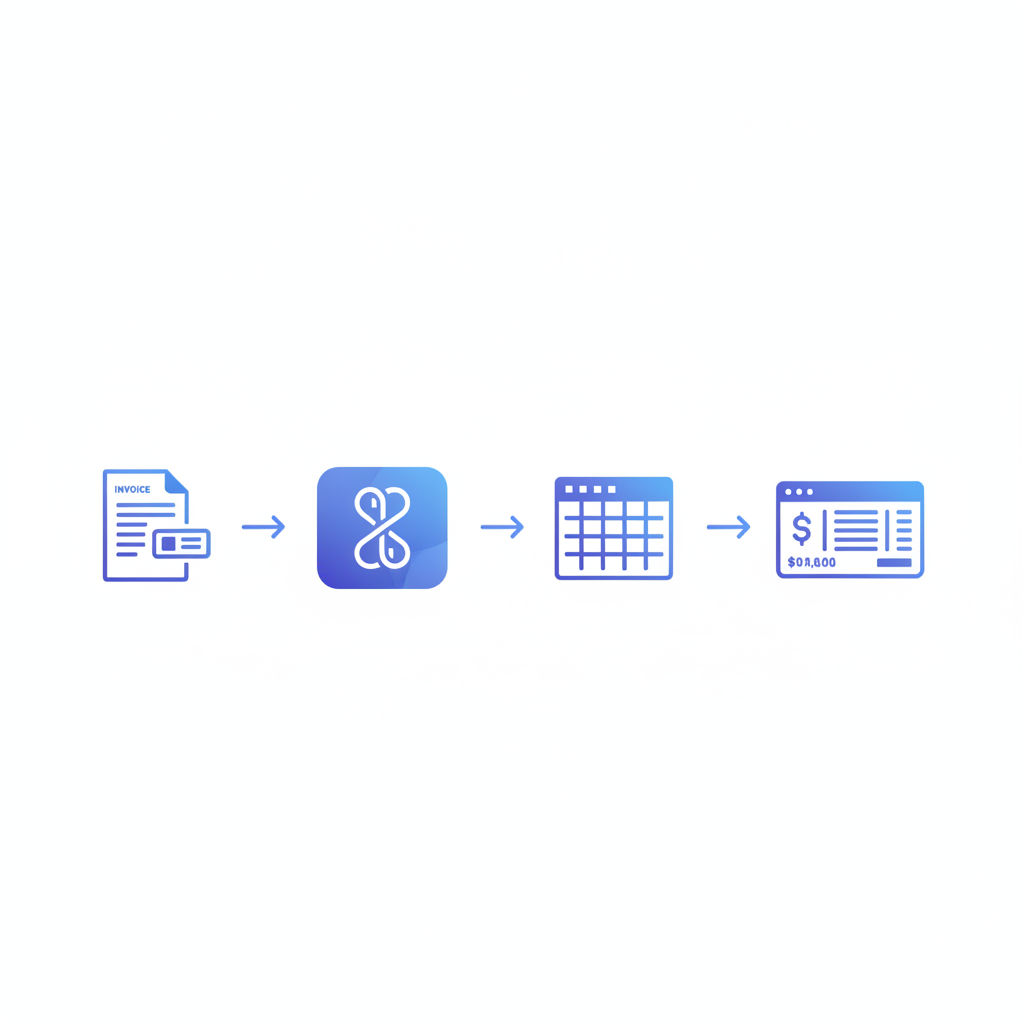
Think of Invoscope as the intake layer. You feed it raw invoices in any format, it returns structured data, and your accounting software receives that data in a format it already understands. The complete guide to automating invoice processing covers the full lifecycle, but this article focuses specifically on the handoff between extraction and your accounting stack.
Three Integration Paths Available Today
There is no single right way to connect Invoscope to accounting software. The best path depends on your invoice volume, the tools your team already uses, and how much automation you actually need. Here is a plain comparison of the three main approaches.
| Integration Path | Best For | Technical Effort | Cost to Start |
|---|---|---|---|
| Export to Excel/CSV, then manual import | Teams processing fewer than 50 invoices/month | None | Free tier (10 invoices/month, no credit card) |
| Zapier or Make automation | Teams wanting no-code, recurring workflows | Low (1-2 hours setup) | From $9.99/month on Invoscope plus Zapier free/paid plan |
| Invoscope Public API | Developers building custom accounting integrations | Medium (requires API key and dev time) | From $9.99/month with API access |
Path 1: Export and Import (No Setup Required)
This is the fastest way to get invoice data into QuickBooks or Xero without any integration work. Invoscope's Quick Analyze mode processes a single invoice in about 5 seconds. Once extraction is complete, you download the result as an Excel file or CSV. From there, QuickBooks Online accepts CSV imports for transactions, and Xero supports CSV bank statement and bill imports natively.
The practical steps look like this:
- Upload your PDF invoice to Invoscope. Quick Analyze returns vendor name, invoice number, date, line items, subtotals, tax, and total in one structured output.
- Download the CSV export from your Invoscope dashboard.
- In QuickBooks Online, go to Expenses, select Import, map the columns from the CSV (vendor, date, amount, account), and confirm.
- In Xero, go to Accounting, Bills to Pay, and use the Import option to upload the same CSV with their required column headers.
For teams processing 10 to 40 invoices per month, this workflow takes maybe 30 minutes total and costs nothing beyond the Invoscope plan. The free tier covers 10 invoices per month with no credit card required, which is a realistic trial for smaller operations.
Path 2: Zapier or Make for Hands-Free Workflows
If you receive invoices by email and want data flowing into QuickBooks or Xero without touching a CSV, a Zapier or Make workflow solves that. The general structure of this automation has three steps: trigger on new invoice, extract data via Invoscope, push the result to your accounting software.
QuickBooks Integration via Zapier
A typical Zapier workflow for QuickBooks invoice extraction looks like this:
- Trigger: New email attachment in Gmail or Outlook (when a supplier sends a PDF invoice).
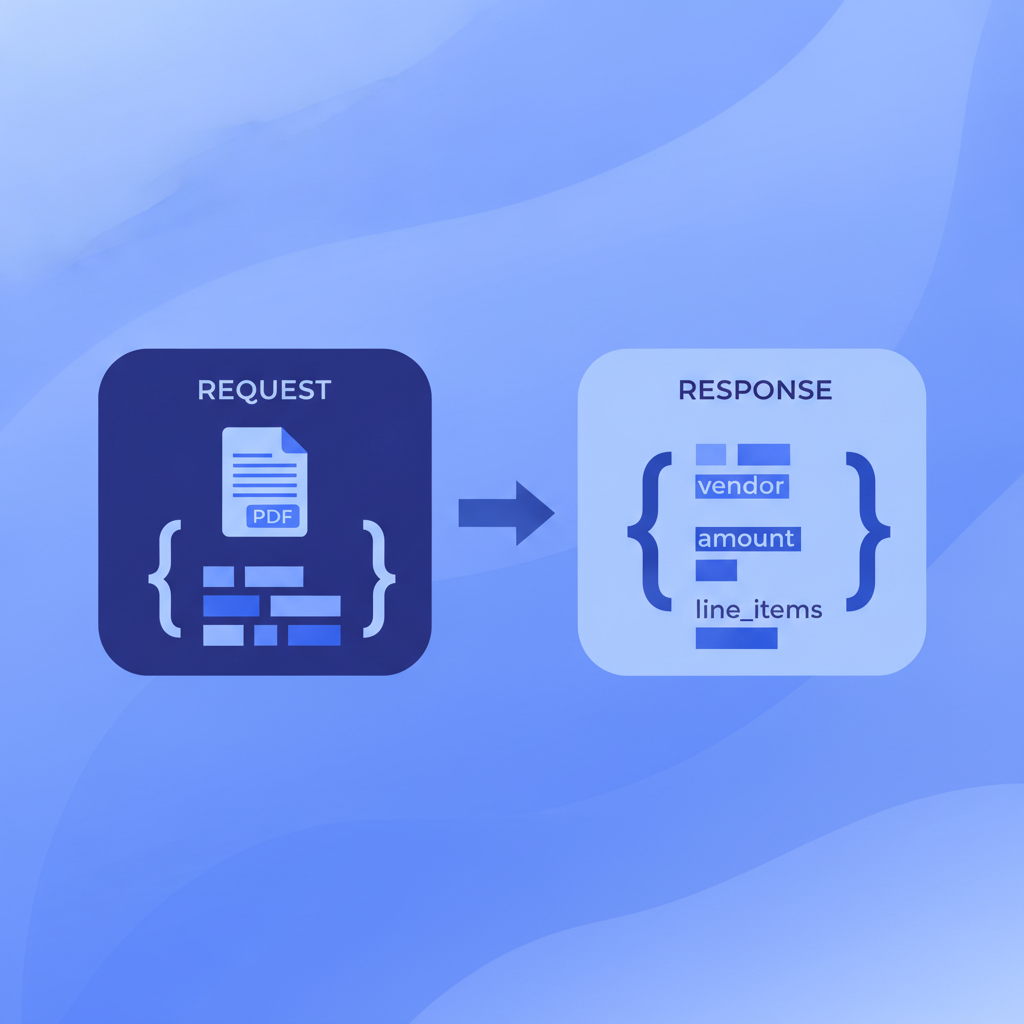
- Action 1: Pass the PDF attachment to Invoscope via its API endpoint. Invoscope returns structured JSON with all extracted fields, usually within 5 seconds.
- Action 2: Use the QuickBooks Online Zapier app to create a new Bill, mapping vendor name, date, line items, and amount from Invoscope's JSON output to the corresponding QuickBooks fields.
Setup time for this three-step Zap is roughly 1 to 2 hours including testing. Once live, every new supplier email with a PDF attachment creates a QuickBooks bill automatically, with no manual data entry.
Xero Integration via Make
Make (formerly Integromat) works well for Xero because it handles multi-step scenarios cleanly. The pattern is the same: watch a folder in Google Drive or a mailbox for new PDFs, call Invoscope's API, then use Make's Xero module to create a draft bill. Make's visual flow builder lets you map each extracted field (invoice number to Reference, vendor to Contact, due date to Due Date) with point-and-click controls.
For teams running Smart Projects in Invoscope, which is designed for bulk invoice batches, you can also export the full batch result as CSV at the end of a project and import it into Xero in one go rather than triggering one API call per invoice. The Smart Projects feature page explains how batch extraction works in more detail.
Path 3: The Invoscope API for Custom Builds
If your team has a developer and you want invoice data flowing into a custom accounting system, an internal ERP, or a bespoke QuickBooks integration, Invoscope's public API gives you direct programmatic access. You send a POST request with the invoice PDF, receive a JSON payload with every extracted field, and write that payload wherever your system expects it.
The API is powered by Google Gemini under the hood, which is part of why Invoscope hits 99.2% extraction accuracy across diverse invoice formats without requiring template setup. There is no schema to define per vendor, no training data to upload. The model reads the invoice and returns clean, labeled fields.
API access is included on paid plans starting at $9.99 per month. The changelog entry for the public API and API keys launch has the technical overview if you want to check authentication and rate limit details before committing.
What Data Fields Does Invoscope Actually Extract?
Before you build any integration, it helps to know what fields you are working with. Invoscope extracts the following from a standard invoice:
- Vendor name and address
- Invoice number and date
- Due date and payment terms
- Line items (description, quantity, unit price, line total)
- Subtotal, tax amount, and total
- Currency
- PO number if present
These fields map directly to the fields QuickBooks and Xero expect when creating a bill or expense. The match is close enough that most Zapier workflows need minimal field transformation, which keeps the no-code setup genuinely simple.
Common Questions Before Committing to a Workflow
Do I need to train Invoscope on my suppliers' invoice formats?
No. Invoscope uses Google Gemini, which reads invoice layouts without any template or training configuration. You upload the PDF and the extraction runs. This is a meaningful difference from legacy OCR tools that require a template per vendor, which can mean weeks of setup before you process a single real invoice. The comparison in our automation guide covers this distinction in depth.
What happens if Invoscope extracts a field incorrectly?
At 99.2% field-level accuracy, errors are rare but not impossible, especially with scanned paper invoices or unusual formats. For Zapier and Make workflows, the standard practice is to route extracted data to a QuickBooks or Xero draft state rather than posting it directly, which lets a human spot-check before the bill is confirmed. The export-and-import path gives you the same review opportunity since you see the CSV before uploading.
Is Invoscope a replacement for QuickBooks or Xero?
No. Invoscope does one thing: extract structured data from invoice PDFs. It does not manage your books, reconcile transactions, generate reports, or handle payments. It is the intake layer before your accounting software, not a replacement for it. If you are trying to decide whether you need a full AP automation platform instead, the post on whether your small business actually needs AP automation software is a useful starting point.
Realistic Time Savings by Integration Path
The numbers below are based on typical manual invoice entry times. Manual entry of a single invoice with 5 to 10 line items takes roughly 5 to 8 minutes. Invoscope reduces the extraction step to about 5 seconds. The time you save depends on how much of the remaining workflow you automate.
| Workflow | Time Per Invoice | Monthly Time (100 invoices) |
|---|---|---|
| Fully manual entry into QuickBooks | 5 to 8 minutes | 8 to 13 hours |
| Invoscope export, then manual CSV import | Under 1 minute | Under 2 hours |
| Invoscope plus Zapier, fully automated | Near zero (review only) | 15 to 30 minutes review |
For a 100-invoice-per-month business, switching from fully manual entry to even the basic export-and-import path recovers roughly 6 to 11 hours per month. The real cost of manual invoice processing article puts a dollar figure on that time if you want a number for a business case.
Getting Started
The free tier covers 10 invoices per month with no credit card and no time limit, which is enough to test the extraction quality and try an export into your accounting software before paying anything. Paid plans start at $9.99 per month and include API access for Zapier, Make, and custom builds.
If you are processing more than a few dozen invoices per month and want a workflow that runs without touching each file manually, the Zapier path is the fastest route to that outcome. If you have a developer and an existing system, the API gets you there with full control. Either way, the extraction step is the same: upload the PDF, get clean structured data in about 5 seconds, and send it wherever your accounting stack needs it.
Ready to test it with your own invoices? Create a free Invoscope account and run your first 10 extractions at no cost, no credit card required.
Related reading: Invoice Automation for Finance Teams: A Practical Workflow Guide
Related reading: Invoice Reconciliation Software: How to Match Invoices to POs Automatically