
An n8n invoice data extraction workflow is an automated pipeline that uses the open-source n8n tool to send invoice PDFs to Invoscope's API, receive structured JSON data back in roughly 5 seconds per invoice, and push the results to a spreadsheet, accounting platform, or database, all without writing a full application or paying for Zapier. If you manage a growing invoice volume and want programmatic control without enterprise price tags, this workflow is worth building.
Why n8n for Invoice Automation?
n8n has grown fast among developer-adjacent finance teams because it sits in a useful middle ground: more flexible than no-code tools like Zapier, far less demanding than building a custom integration from scratch. You can self-host it for free, store your credentials on your own infrastructure, and write small JavaScript snippets inside nodes when you need logic that a drag-and-drop UI cannot express.
For invoice processing specifically, that flexibility matters. Invoices arrive from dozens of different suppliers in different formats. A rigid template-based parser breaks constantly. Invoscope uses Google Gemini under the hood and requires no template setup, which means it handles format variation automatically. Pairing Invoscope's extraction accuracy (99.2% on a publicly documented benchmark) with n8n's routing logic gives you a durable, maintainable pipeline.
If you use Zapier or Make instead, the same Invoscope API works with those tools too. A separate guide covers the Zapier invoice processing workflow in detail. This article focuses specifically on n8n.
What You Need Before You Start
- An Invoscope account. The free tier gives you 10 invoices per month with no credit card required. Paid plans start at $9.99 per month if you need higher volume. Sign up at /register.
- An Invoscope API key. After logging in, go to your dashboard settings and generate a key. The public API launched with full key management built in.
- n8n installed. You can run n8n locally with
npx n8n, use n8n Cloud, or deploy via Docker. The workflow nodes described here work identically across all three. - A destination for your data. Google Sheets, Airtable, a PostgreSQL database, QuickBooks via their API, or a simple webhook to your ERP all work. The examples below use Google Sheets because it is the most common choice for SMB finance teams.
How Invoscope's API Works in One Paragraph
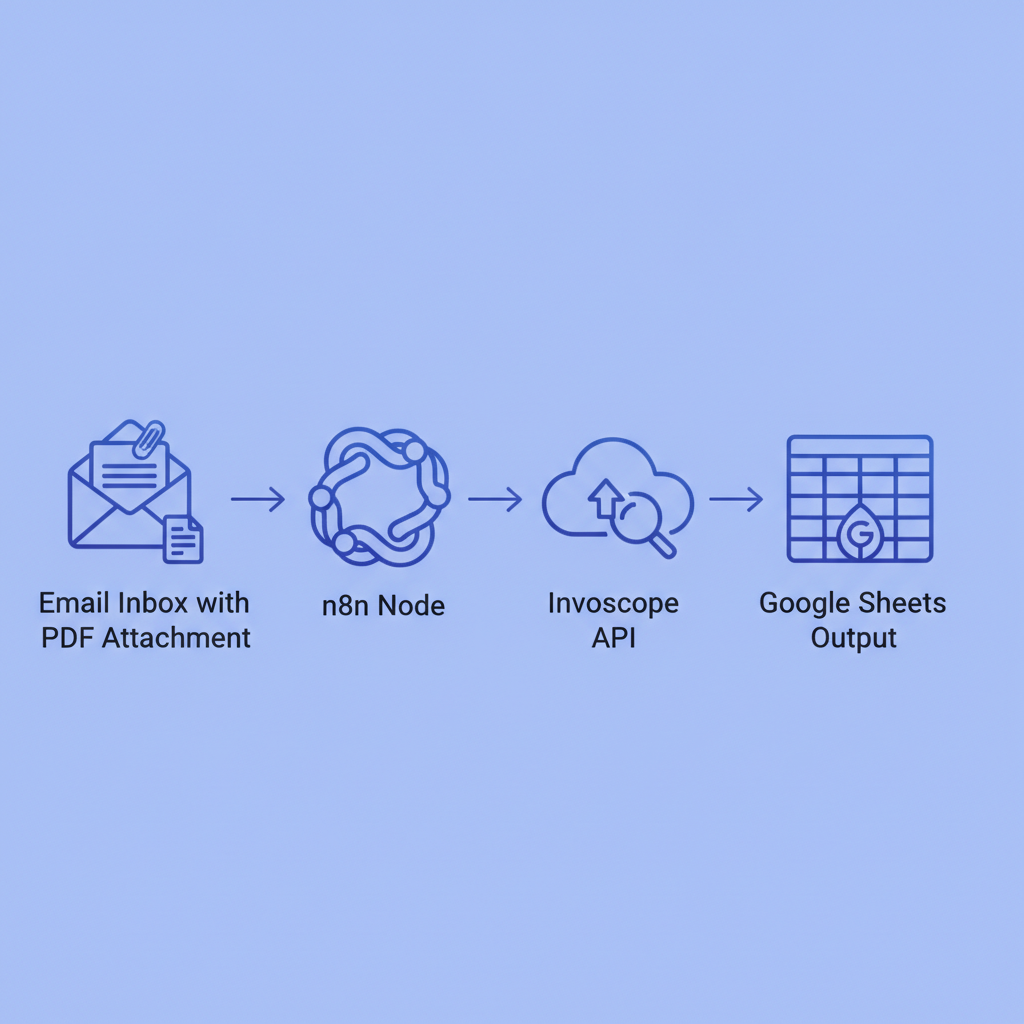
You POST a PDF file (or a base64-encoded string) to the Invoscope extraction endpoint along with your API key. Invoscope processes the invoice using its AI extraction engine and returns a JSON object containing fields like vendor_name, invoice_number, invoice_date, due_date, total_amount, currency, line_items, and more. The response typically arrives in about 5 seconds. You then use n8n nodes to map those JSON fields to columns in your destination system. That is the entire integration surface area.
For a deeper look at what the extraction engine captures and why no-template AI extraction is reliable, see the no-template AI extraction explainer.
The Core Workflow: Step by Step
The workflow below handles the most common scenario: invoices arrive as PDF email attachments, get extracted, and land in a Google Sheet. Adapt the trigger and destination nodes to your own stack.
Step 1: Set Up the Trigger Node
In n8n, every workflow starts with a trigger. For invoice processing, you have three practical options:
- Gmail / Outlook node on a polling schedule (check every 5 or 15 minutes for emails with PDF attachments matching a subject filter like "Invoice" or from a known supplier domain).
- Webhook node if your invoice intake is already automated and another system can POST to a URL.
- Google Drive / Dropbox node watching a specific folder for new PDF uploads.
For the Gmail trigger, configure it to return only messages with attachments and filter by a label you apply to incoming invoices. Set the polling interval based on how quickly you need data. Every 15 minutes is a reasonable starting point that keeps API call counts low.
Step 2: Extract the PDF Attachment
Add an "Extract PDF Attachment" or "Get Binary Data" step. In n8n, Gmail message nodes return attachment data as binary. You need to isolate the PDF binary before sending it to Invoscope. Use a Function node if you need to loop over multiple attachments in one email.
Step 3: Call the Invoscope API
Add an HTTP Request node. Configure it as follows:
- Method: POST
- URL: The Invoscope extraction endpoint (available in your dashboard after generating an API key)
- Authentication: Header Auth, with the header name
Authorizationand valueBearer YOUR_API_KEY - Body: Form Data, with the PDF binary attached as the
filefield - Response format: JSON
n8n's HTTP Request node handles multipart form data natively. No custom code is required for this step. When the node executes, Invoscope returns a JSON object. Inspect the output in n8n's execution log to see the exact field names before mapping them downstream.
Step 4: Parse the JSON Response
Add a Set node (or a Function node for more control). Map the fields you need from the Invoscope response to clean variable names. A typical mapping looks like this:
vendorfrom{{ $json.vendor_name }}invoiceNumberfrom{{ $json.invoice_number }}invoiceDatefrom{{ $json.invoice_date }}dueDatefrom{{ $json.due_date }}totalfrom{{ $json.total_amount }}currencyfrom{{ $json.currency }}
If you need line items, Invoscope returns them as an array inside line_items. You can use an n8n Split in Batches node to write one row per line item, or use a Function node to serialize the array into a single pipe-delimited string for simpler flat-table storage.
Step 5: Write to Google Sheets
Add the Google Sheets node, authenticate with OAuth2, select your spreadsheet, and map each variable to a column. Common columns: Vendor, Invoice Number, Invoice Date, Due Date, Total, Currency, Extraction Timestamp, Source Email. Add an Extraction Timestamp using {{ $now.toISO() }} so you have an audit trail.
Step 6: Add Error Handling
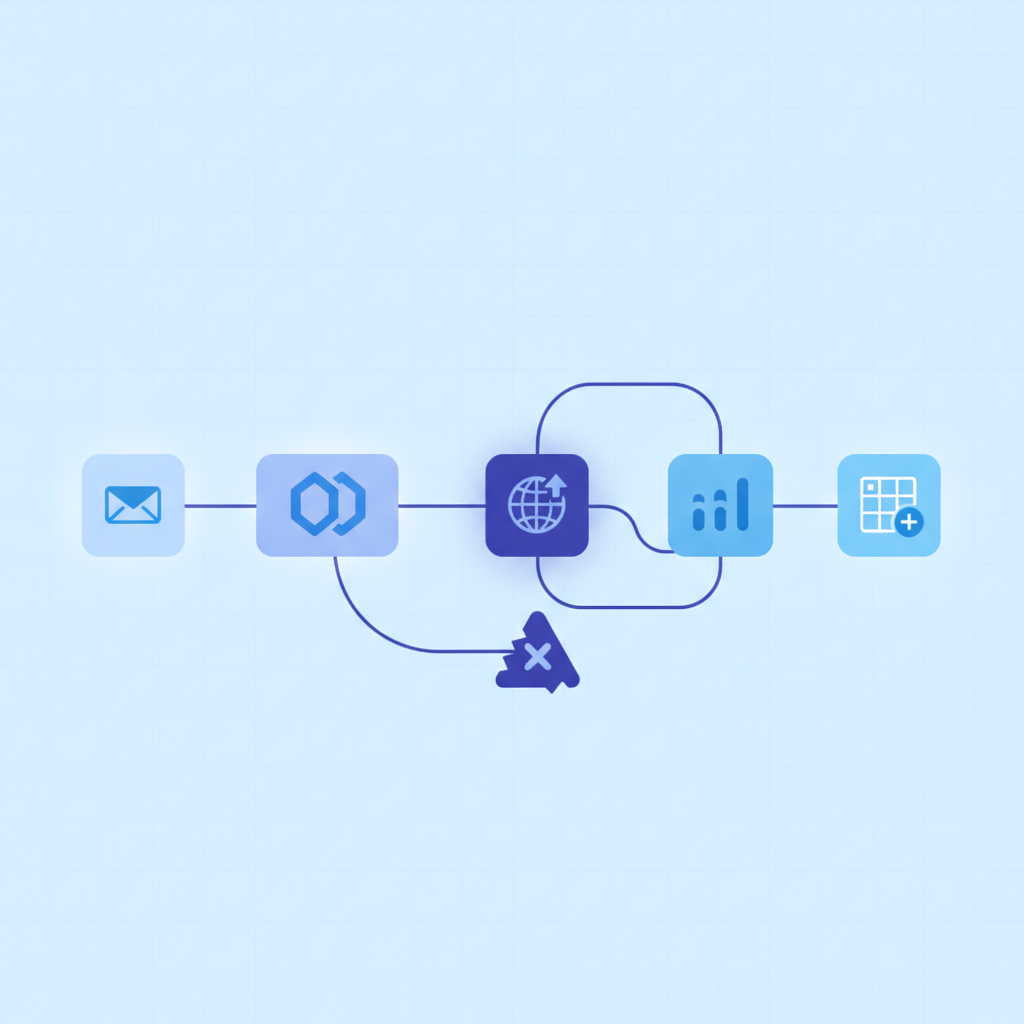
Wrap the HTTP Request node in an Error Trigger path. If Invoscope returns an error (for example, a corrupt PDF), route the execution to a Slack or email notification node so someone on the team knows to handle it manually. n8n's built-in error workflow feature makes this straightforward to configure without duplicating logic.
Adding a Smart Projects Layer for Batch Processing
If you receive high invoice volumes, individual API calls per invoice are fine, but Invoscope's Smart Projects feature lets you organize extractions into project buckets and export consolidated Excel files. You can combine this with n8n by batching invoices that arrive within a time window and triggering a project export via API rather than fetching individual results. The result is a single Excel file per supplier or per accounting period, already formatted for review.
See the batch processing guide for the full explanation of how Smart Projects handles high-volume scenarios.
n8n vs. Zapier for Invoice Extraction: How They Compare
| Factor | n8n (self-hosted) | n8n Cloud | Zapier |
|---|---|---|---|
| Cost | Free (you pay hosting) | From ~$20/month | From $19.99/month |
| Data privacy | Full control, no third-party servers | n8n servers (EU option) | Zapier servers |
| Custom logic | JavaScript in Function nodes | JavaScript in Function nodes | Limited; Zapier Code step with constraints |
| HTTP Request support | Native, full multipart support | Native, full multipart support | Native but multipart can require workarounds |
| Setup complexity | Medium (requires server or local install) | Low | Low |
| Line item looping | Native Split in Batches node | Native Split in Batches node | Requires Looping Zap feature (higher plan) |
| Version control | Workflows export as JSON, Git-friendly | Workflows export as JSON, Git-friendly | No native version control |
For teams comfortable with a terminal and Docker, self-hosted n8n offers the best cost-to-capability ratio. If you want something running in minutes without server management, n8n Cloud or Zapier are both practical, and Invoscope's API works identically with both.
Connecting to Accounting Software After Extraction
Once invoice data is in n8n as clean JSON, pushing it forward is a matter of adding more nodes. QuickBooks Online has an official n8n community node. Xero can be reached via HTTP Request using their OAuth2 API. For teams already using accounting software integrations, the invoice extraction accounting software integration guide covers the specific field mappings and authentication patterns for both platforms.
The important point: Invoscope handles the hard part, which is turning an unstructured PDF into structured JSON. Everything after that, routing data to QuickBooks, flagging invoices above a certain amount for approval, archiving PDFs in Google Drive, is standard n8n node work that any competent workflow builder can manage without specialized knowledge.
Practical Tips for a Reliable Production Workflow
- Deduplicate by invoice number. Before writing to your sheet or database, check whether that invoice number already exists. n8n's IF node plus a Google Sheets lookup handles this in two additional nodes.
- Rate limit your trigger. The free Invoscope tier covers 10 invoices per month. If you are on a paid plan and processing hundreds of invoices, space out batch calls to stay within any burst limits and avoid overwhelming downstream systems.
- Store the raw JSON. Write the full Invoscope JSON response to a separate log column or database table. If you later discover a mapping error, you can reprocess from the stored JSON without re-calling the API.
- Use n8n's credential store. Never hardcode your Invoscope API key in a Function node. Store it in n8n's encrypted credentials manager and reference it via the HTTP Request node's authentication settings.
- Test with a known invoice first. Run the workflow manually on one invoice you have already processed by hand so you can verify every field maps correctly before switching on the automatic trigger.
How This Fits Into a Broader Automation Strategy
An n8n extraction workflow is one layer of a complete invoice automation approach. For the full picture, including how to handle approvals, three-way matching, and exception routing, the complete guide to automating invoice processing covers each stage in depth. The n8n workflow described here handles the data extraction and ingestion stage; the pillar article explains how to build the surrounding process around it.
If your team is evaluating whether this level of tooling is appropriate for your size, the SMB AP automation assessment gives a practical framework for that decision.
Getting Started Today
The fastest way to validate this workflow before investing time in n8n setup is to run a few invoices through Invoscope manually. The free tier gives you 10 extractions per month with no credit card required, so you can confirm the extraction quality on your actual supplier invoices before writing a single node. Once you are confident in the output, the n8n integration described above takes most teams an afternoon to build and test.
Invoscope's full feature overview covers both Quick Analyze for one-off extractions and Smart Projects for organized batch workflows, so you can choose the mode that fits your n8n integration pattern best.
Ready to build your n8n invoice data extraction workflow? Create your free Invoscope account and grab your API key in under two minutes, no credit card needed.
Related reading: Purchase Order vs Invoice: The Difference and How They Get Matched in AP Workflows
Related reading: What Is 3-Way Matching? Invoice, Purchase Order, and Receipt Matching Explained