
Every business that receives invoices faces the same bottleneck: getting the data off the page and into a spreadsheet, accounting system, or ERP. For most companies, this still means someone manually typing numbers from a PDF into Excel — a process that costs between $12 and $15 per invoice when you factor in labor time, error correction, and rework.
Multiply that by hundreds or thousands of invoices per month, and manual invoice data entry becomes one of the most expensive, error-prone back-office tasks in any organization. According to industry benchmarks, finance teams spend up to 80% of their time on data entry rather than analysis. The good news: in 2026, there are faster, cheaper, and more accurate ways to extract data from invoices automatically.
This guide walks through five methods for invoice data extraction — from fully manual to fully automated — so you can choose the right approach for your volume, budget, and accuracy requirements. We'll also include a hands-on tutorial showing how to extract invoice data for free using AI.
5 Methods to Extract Invoice Data
Not all extraction methods are created equal. Here's how the five most common approaches compare in terms of speed, accuracy, cost, and setup effort.
Method 1 — Manual Data Entry
The baseline approach: open the invoice PDF on one screen, type the data into a spreadsheet or accounting system on the other. It's straightforward and requires no software beyond what you already have.
The problem is scale. Manual entry takes 10 to 30 minutes per invoice depending on the number of line items. Accuracy drops as volume increases — studies consistently show a 4% error rate in manual data entry, meaning roughly 1 in 25 invoices will have at least one wrong number. At $12–$15 per invoice in labor cost, this method becomes prohibitively expensive for any business processing more than a handful of invoices per week.
Best for: Businesses processing fewer than 10 invoices per month with no budget for tools.
Method 2 — Copy-Paste from PDF
A step up from pure manual entry: select text in a PDF viewer, copy it, and paste it into your spreadsheet. This works reasonably well for simple, text-based PDFs — but breaks down quickly with scanned documents, multi-column layouts, or invoices with complex line-item tables.
The main issues are formatting loss and structure collapse. When you copy a table from a PDF, the row-and-column structure rarely survives the paste. You end up spending almost as much time reformatting as you would have spent typing. Scanned invoices (image-based PDFs) don't support text selection at all, making this method useless for paper-origin documents.
Best for: Occasional use with simple, digital-native PDF invoices.
Method 3 — Basic OCR Tools
Optical Character Recognition (OCR) software converts scanned images into machine-readable text. Tools like Adobe Acrobat, ABBYY FineReader, or free alternatives like Tesseract can extract raw text from image-based PDFs.
The limitation is that basic OCR gives you unstructured text — a stream of characters without knowing which text is a vendor name, which is an invoice number, and which is a line-item amount. You still need to manually parse and organize the output. Accuracy typically lands between 85% and 90% for standard invoice layouts, and drops significantly for poor-quality scans, handwritten notes, or unusual formatting.
Best for: Digitizing paper archives where structured extraction isn't the priority.
Method 4 — AI-Powered Extraction (Recommended)
This is where modern invoice processing gets interesting. AI-powered extraction goes beyond OCR by not just reading the text, but understanding the document. AI models identify what each piece of text means in context — distinguishing between a vendor name, invoice date, tax amount, and line-item description — then extract it into structured, labeled fields.
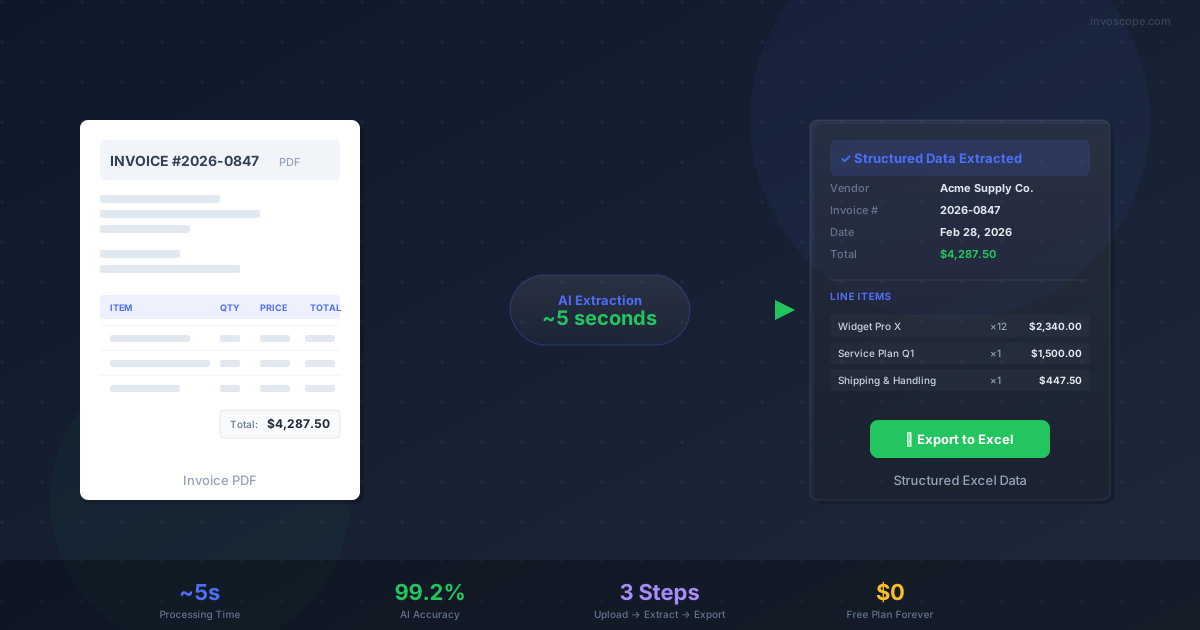
Invoscope's Quick Analyze is an example of this approach. Upload any invoice in PDF, JPG, or PNG format, and the AI extracts all header fields (vendor name, invoice number, dates, payment terms, totals) and granular line items (descriptions, quantities, unit prices, amounts) in approximately 5 seconds. The extracted data achieves 99.2% accuracy on standard invoice formats — a significant leap over both manual entry and basic OCR.
The key advantages of AI extraction:
- Speed: ~5 seconds per invoice, compared to 10–30 minutes for manual entry
- Accuracy: 99.2% field-level accuracy — less than 1% error rate
- Structure: Data comes out pre-organized into header fields and line-item rows
- Format flexibility: Works on digital PDFs, scanned documents, and photos alike
- Cost: Free for up to 10 invoices per month; paid plans start at $9.99
Best for: Any business looking for fast, accurate invoice data extraction without enterprise-scale budgets or multi-month implementation timelines.
Method 5 — Enterprise AP Automation
At the top end of the spectrum, enterprise accounts payable (AP) automation platforms like SAP Concur, Coupa, or Kofax offer end-to-end invoice processing integrated with ERP systems, approval workflows, and payment execution.
These platforms are powerful — but they come with enterprise-scale pricing (typically $50,000+ annually), lengthy implementation timelines (3–6 months), and significant change management overhead. They make sense for organizations processing tens of thousands of invoices per month with complex multi-department approval chains. For small-to-mid-sized businesses, they're overkill.
Best for: Large enterprises with 10,000+ invoices per month and dedicated AP teams.
Step-by-Step: Extract Invoice Data with Invoscope
Let's walk through the actual process of extracting invoice data using Invoscope's Quick Analyze — the AI-powered method described above. The entire process takes under a minute.
Step 1 — Create a Free Account
Go to invoscope.com/register and sign up with your email address. No credit card is required. Your free account includes 10 invoice extractions per month — enough to test the tool thoroughly on your own invoices before deciding to upgrade.
Step 2 — Upload Your Invoice PDF
From the dashboard, click Quick Analyze in the sidebar. Drag and drop your invoice file — or click to browse. Invoscope accepts PDF, JPG, JPEG, and PNG formats. There's no template setup, no configuration, and no training required. Just upload and go.
Step 3 — Review AI-Extracted Data
Within approximately 5 seconds, Invoscope displays the extracted data on screen. You'll see two sections:
- Header fields: Invoice number, invoice date, due date, vendor name, billing address, payment terms, subtotal, tax, and total amount
- Line items: Each row with description, quantity, unit price, line amount, and item codes where available
Review the results and make any corrections if needed. The AI achieves 99.2% accuracy, so most invoices come through perfectly on the first pass.
Step 4 — Export to Excel
Click the Export to Excel button. Choose which header fields and line items to include in your spreadsheet — you have full control over what goes into the export. Invoscope generates a professionally formatted Excel file that's ready to import into your accounting software, share with your team, or archive for records.
That's the full workflow: upload, extract, review, export. Four steps, under a minute, free for up to 10 invoices per month.
Prefer to skip parsing rules entirely? Invoscope is a Docparser alternative with no template setup. Working with email-based intake? Invoscope is also a Parseur alternative for invoice extraction.
Considering a broader document-AI suite? Invoscope is also a focused Klippa alternative for invoice extraction.
Comparison: Invoice Data Extraction Methods
Here's how all five methods stack up side by side:
| Method | Speed | Accuracy | Cost Per Invoice | Handles Scans? | Structured Output? |
|---|---|---|---|---|---|
| Manual Data Entry | 10–30 min | ~96% | $12–$15 | Yes (human reads it) | Yes (manual formatting) |
| Copy-Paste from PDF | 5–15 min | ~90% | $5–$8 (labor) | No | No (loses formatting) |
| Basic OCR | 2–5 min | 85–90% | $3–$5 | Yes | No (unstructured text) |
| AI Extraction (Invoscope) | ~5 seconds | 99.2% | From $0 (free plan) | Yes | Yes (headers + line items) |
| Enterprise AP Automation | Seconds (batch) | 95–99% | $1–$3 (at scale) | Yes | Yes (ERP integration) |
For businesses processing between 10 and 1,000 invoices per month, AI-powered extraction offers the best combination of speed, accuracy, and cost. Enterprise AP automation only makes financial sense at very high volumes where the per-invoice cost amortizes the large upfront investment.
When to Use Quick Analyze vs. Smart Projects
Working in a practice? Our guide to invoice data extraction for accountants and bookkeepers maps these modes to real client workflows.
Invoscope offers two extraction modes, each designed for a different workflow:
Quick Analyze is the zero-setup mode. Upload any invoice and get instant AI extraction with no template configuration. It's ideal for one-off invoices from new vendors, ad-hoc extractions, or when you're processing invoices from many different formats. Quick Analyze is available on every plan, including the free tier.
Smart Projects is the template mode for recurring invoice formats. Upload a few sample invoices from a specific vendor, let the AI detect available fields, and select exactly which ones you want to extract. Save the template, then upload batches of similar invoices — the AI processes them all automatically using your custom configuration. Smart Projects is available on Starter ($9.99/month) and above.
Rule of thumb: If you're processing invoices from the same vendor or format repeatedly, set up a Smart Project for that format — it saves time on every subsequent batch. For everything else, Quick Analyze handles it in seconds with zero setup.
Start Extracting Invoice Data for Free
Manual invoice data entry is one of the most wasteful uses of human time in modern business. At $12–$15 per invoice, with a 4% error rate, and 10–30 minutes per document — the math doesn't work for any business processing more than a handful of invoices.
AI-powered extraction with Invoscope reduces that to 5 seconds, 99.2% accuracy, and $0 per invoice on the free plan. Create a free account, upload your first invoice, and see the difference yourself.
The only remaining question is how many invoices you'll continue to enter manually before switching.
If you're evaluating which invoice extraction tool is the right fit, the Invoice Processing Software Buyer's Guide covers evaluation criteria, pricing models, and a 10-point feature checklist for comparing any tool.
Related reading: Invoice Data Extraction: Methods, Tools & Best Practices
Start Free — Extract Your First Invoice ?
Related reading: automated invoice processing, explained step by step, and how AI invoice processing works without templates.